
This article explains how to view tickets that have been raised with the service desk by you or anyone in your company.
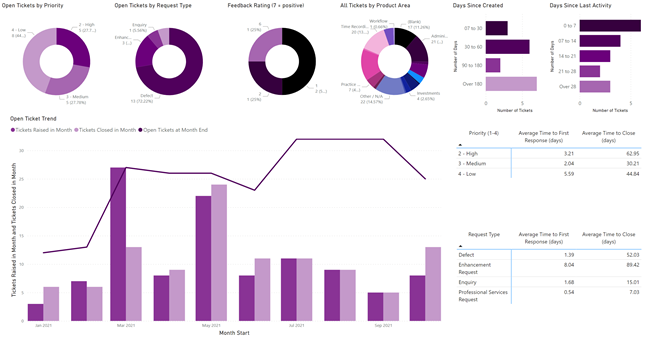
You can view details of service desk tickets that have been raised by your company through the Customer Service Dashboard tile. You will be initially presented with a dashboard view that shows as number of visual widgets and data grids that give you a 360° view of all the tickets that your company has raised with the Service Desk. The dashboard is fully interactive, so feel free to explore!
Ticket Listings
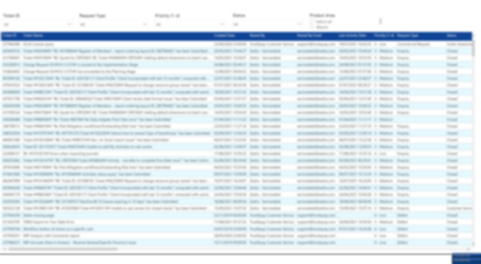
The ticket listings screen shows all the key information related to the tickets raised by your company and includes a number of ease-of-use features, such as sorting, filtering and export to Excel. You can access the ticket listing screen from the dashboard screen, either by clicking on the “Open Tickets” or “View All” buttons on the header bar, or by right-clicking on any data element on any of the dashboard widgets and selecting the “Drill through” option. In all cases except “View All”, the Customer Hub will show you a pre-filtered view of tickets that matches the criteria of your drill-through.
Ticket Details
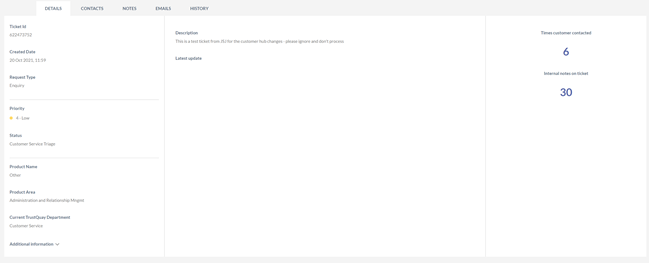
If you left-click on any row of the Ticket Listings screen, you will be taken to a Ticket Details screen, similar to below, that will show you details of the ticket, all the contacts from your company who have been engaged in the ticket, any notes on the ticket that you have access to, any emails relating to the ticket that you have access to, and the timeline history of the ticket.
Add Note to Ticket
Notes that be a useful way of providing updates, additional information and responses to questions to the TrustQuay Customer Service team. Such notes are visible to all members of the Customer Service team.
Add Attachment to Ticket
You can also add document attachments to the ticket, optionally including notes to describe the document content. Please note that the size of file attachments is limited to 4MB – larger files should be uploaded through our SFTP service – please contact the Customer Service team for details.
Close/Reopen Ticket
From the Ticket Details screen, you can close and existing open ticket if you believe that the issue is resolved/no longer required. When closing a ticket you can optionally add a note to let the TrustQuay Customer Service team know why you’re closing the ticket.
You can also re-open a ticket that you believe has been closed in error or which you think is still unresolved. Again, please ad a note to help the Customer Service team understand your reasons for re-opening the ticket. Note that if you are experiencing follow-on or tangential issues to the original problem then we will kindly request that you raise a new ticket rather than re-open old tickets.